
How To Install Downloader App on Firestick/Fire TV
The Downloader app is one of the most useful tools for Amazon Firestick and Fire TV users. It allows you to download applications directly from the internet using a URL, which makes it easy to install streaming tools, media players, and IPTV applications that are not available in the Amazon App Store.
Many users who watch television through IPTV Canada services rely on the Downloader app to install compatible IPTV players on their devices. Once installed, it becomes a simple gateway for downloading and managing streaming applications.
Here’s the steps to do Install Downloader App on Firestick/Fire TV:
1. From the Device’s Main Menu scroll to hover over Settings
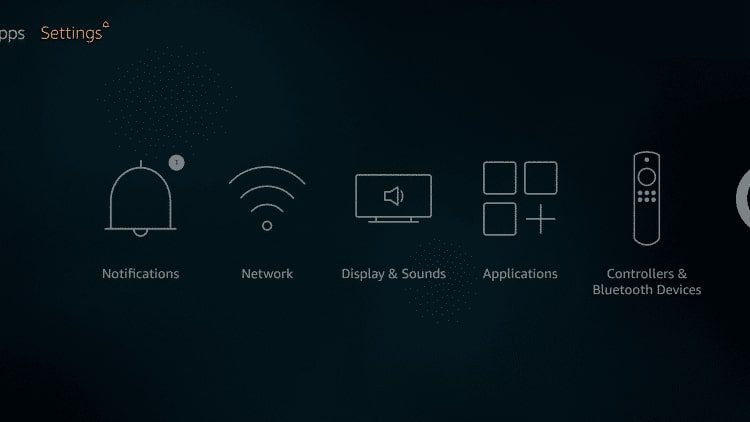
2. Click My Fire TV
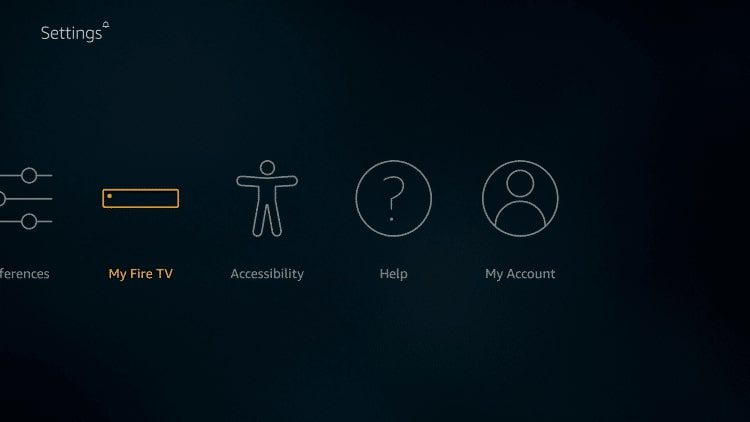
3. Choose Developer Options
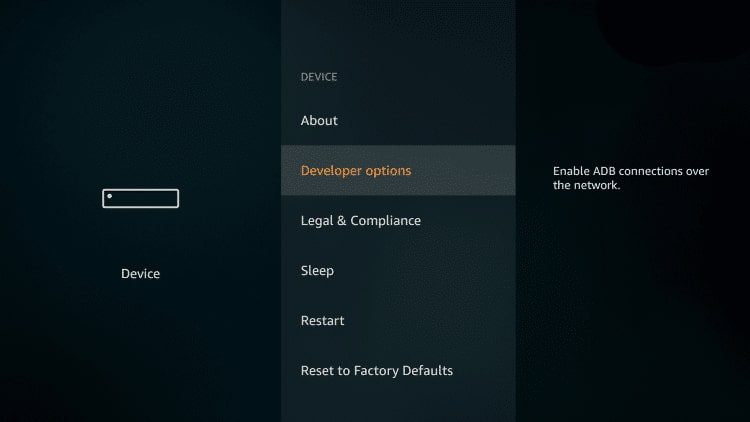
4. Click Apps from Unknown Sources
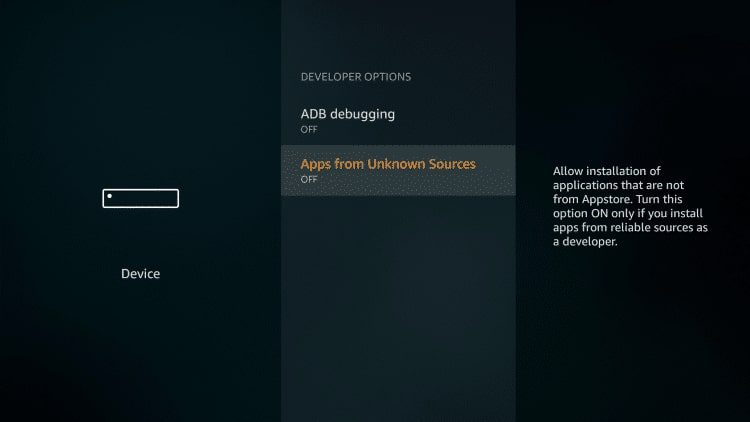
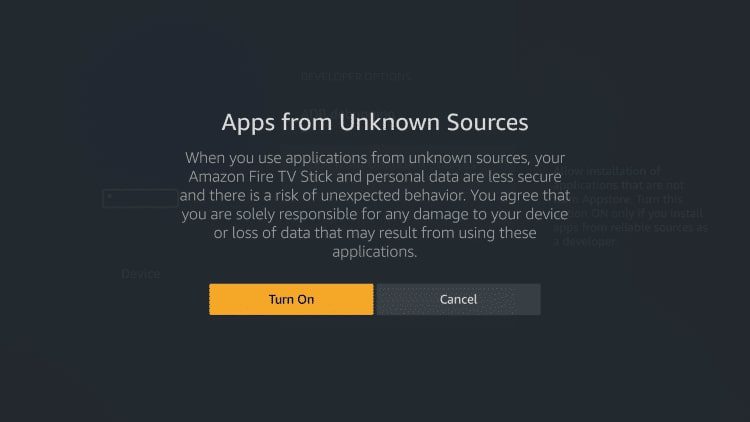
5. Choose Turn On
NOTE: Turning on Unknown Sources is not needed to install Downloader. However, to install any 3rd party applications via Downloader, this must be enabled.
6. Return to the home screen and hover over the Search icon
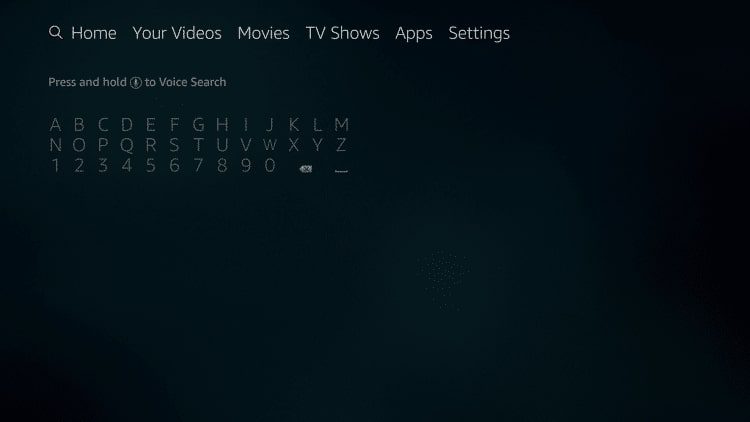
7. Type in Downloader
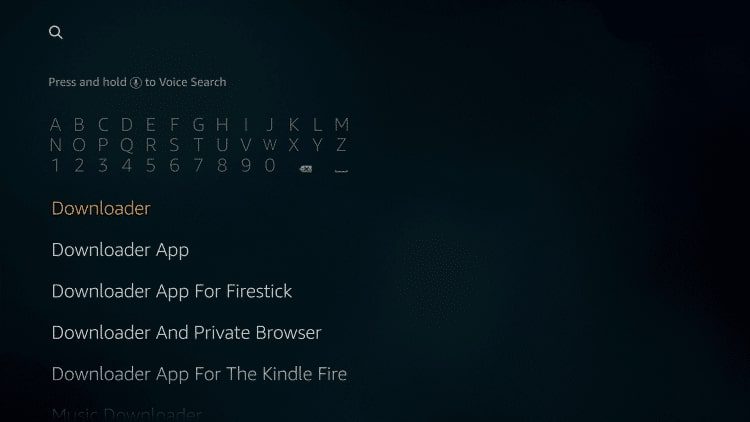
8. Select the Downloader app
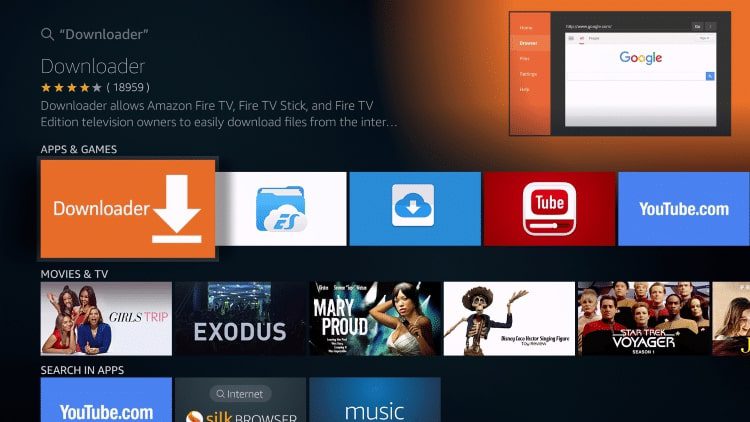
9. Click Download
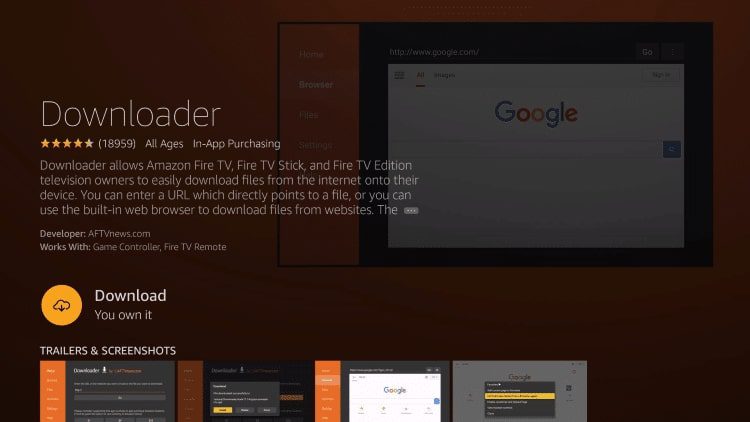
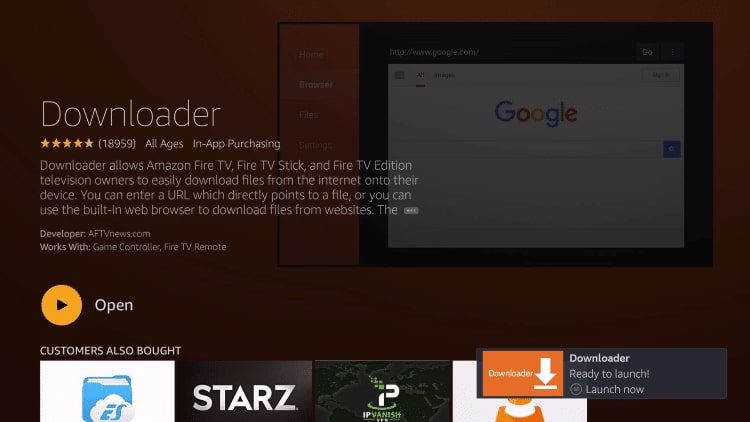
10. Click Open
11. Click Allow
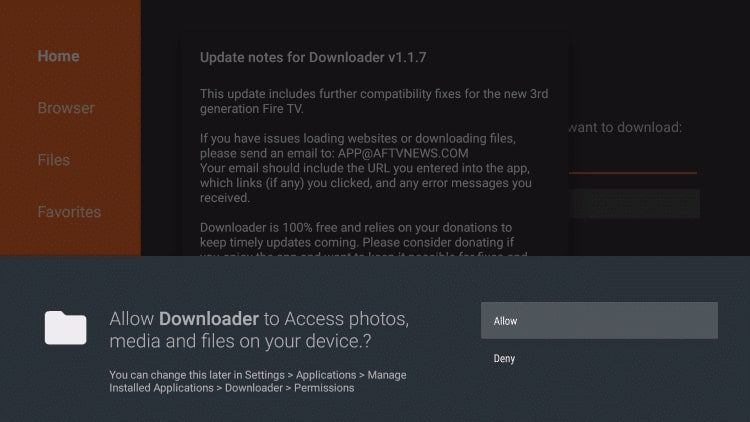
12. Click OK
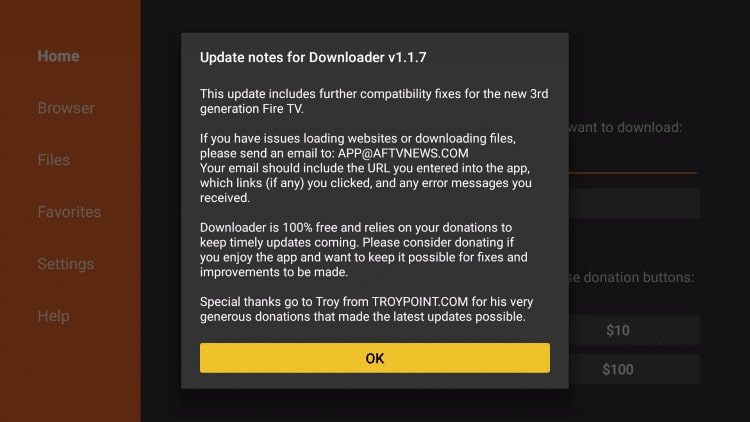
That’s it!
To use all features of this app, I also suggest Enabling Javascript within the Settings of the application:
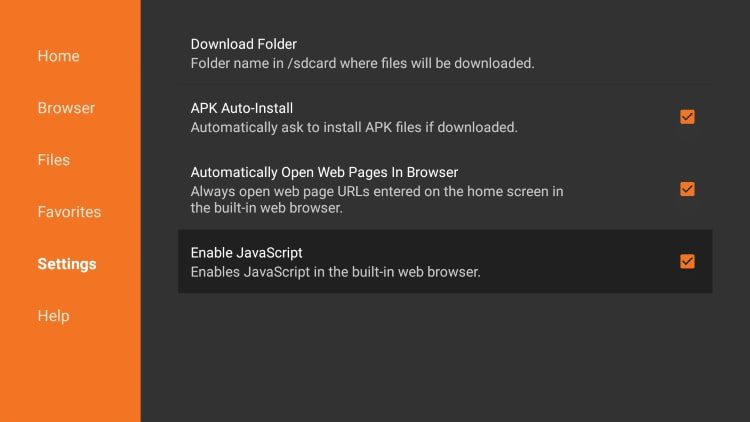
You can now use Downloader to Install apps and APKS with ease.
Why the Downloader App Is Important on Firestick
Amazon Firestick devices are designed mainly to install apps from the official Amazon store. However, some streaming applications and IPTV players are distributed outside of the store. The Downloader app solves this limitation by allowing you to download installation files directly.
With Downloader installed on your Firestick or Fire TV, you can easily:
-
Download APK files from trusted websites
-
Install IPTV players for streaming channels
-
Access streaming tools not available in the Amazon App Store
-
Manage downloads directly from your TV interface
For users in Canada who stream live television through IPTV, this app is often the first step before installing an IPTV player.
Installing the Downloader App on Firestick
Installing the Downloader application takes only a few minutes. The process can be done directly from the Amazon App Store on your device.
Simply open the search option on your Firestick home screen and type Downloader. Once the application appears in the results, select it and install it like any other app.
After installation is complete, the app will appear in your Applications & Channels section where it can be opened and used to download files.
Enable App Installation Permissions
Before downloading external apps, Firestick requires permission to install applications from unknown sources.
Inside the device settings, you can enable this option under developer settings. Once enabled, Downloader will be able to install compatible apps safely on your Fire TV device.
This step is commonly required when setting up streaming applications or IPTV players used for watching international channels.
Using Downloader to Install Streaming Apps
After opening the Downloader app, you will see a simple address bar where you can enter a direct URL. When a valid link is entered, the app downloads the installation file and allows you to install it directly on your device.
This process is widely used by people who install IPTV players for watching live TV channels, sports, movies, and international content on Firestick.
Firestick and IPTV Streaming in Canada
Amazon Firestick has become one of the most popular devices for home streaming in Canada. Its portability, low price, and compatibility with many streaming apps make it ideal for watching television through IPTV services.
With a Firestick and the right IPTV player installed, users can access channels, on-demand content, and sports from a single interface.