
How to use IPTV on Windows using IPTV url – Updated 2026
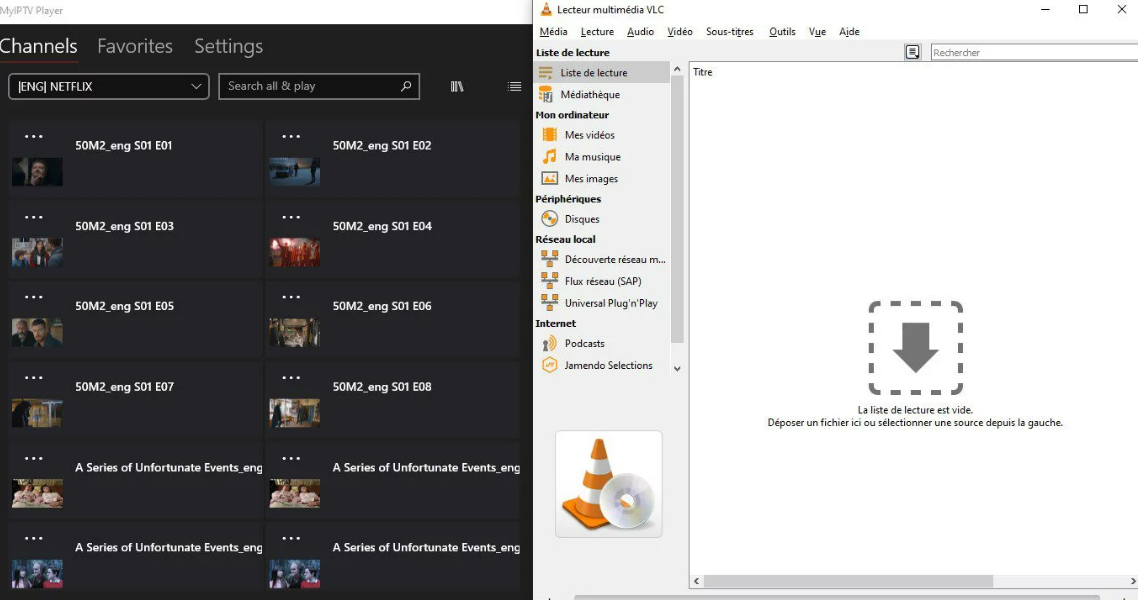
You can watch TV channels, movies and tv shows from your laptop or computer with windows installed. To do that you need to have one these apps installed from windows store:
- HOTPLAYER #1 best app
- MYIPTV PLAYER
- VLC PLAYER
The difference between these two apps are that HOTPLAYER is is much faster than VLC and MYIPTV PLAYER and have more focus on IPTV niche. It have the logos of the channels and VOD. Althought VLC Has the capability to record the Streaming while watching it.
For the three apps you need to use URL given by us instead of (username, password, portal url).
To get the url, you need to fill the free trial form of 24h that we are offering.
Using HOTPLAYER:
- Once installed, open it
- Send us mac address shown inside the app
- that’s it! we will take care of the rest.
Using MYIPTV PLAYER:
- Once installed from Windows store, Open the app.
- Go to Settings.
- In Remote Channel List, enter the name of the playlist and the Url that we will give you.
- Click Add Remote List.
- Return to the Channel panel and waiting for them to load.
- Enjoy.
Using VLC PLAYER:
- open google and type VLC Player and download it from the official Website.
- Once installed, Open it.
- In the menu top left, click on Media tab -> Open Network Stream.
- Then Enter the Url that we will give you.
- Wait for the loading of the content.
- Enjoy.
Record Streaming on VLC
- Click on the Media tab from the top menu.
- Scroll down and select Convert / Save.
- Choose the Capture Device tab at the top right of the window.
- In the Capture Device window, at the top right, click the Capture mode dropdown and select Desktop.
- Choose your preferred frame rate from the Desired frame rate for the capture dropdown menu.
- Click Convert / Save at the bottom right corner of the window.
- Give a name to your file and choose the destination when it will be saved.
- Click the Save button.
- Click Start to start recording your screen